Testing GitHub Copilot for the first time. This is a live session—adding thoughts and discoveries as I go.
Getting Started
Setting up the blog post structure. Ready to capture real-time experiences with the tool.
Well, That Didn't Take Long
I crashed it. Already.
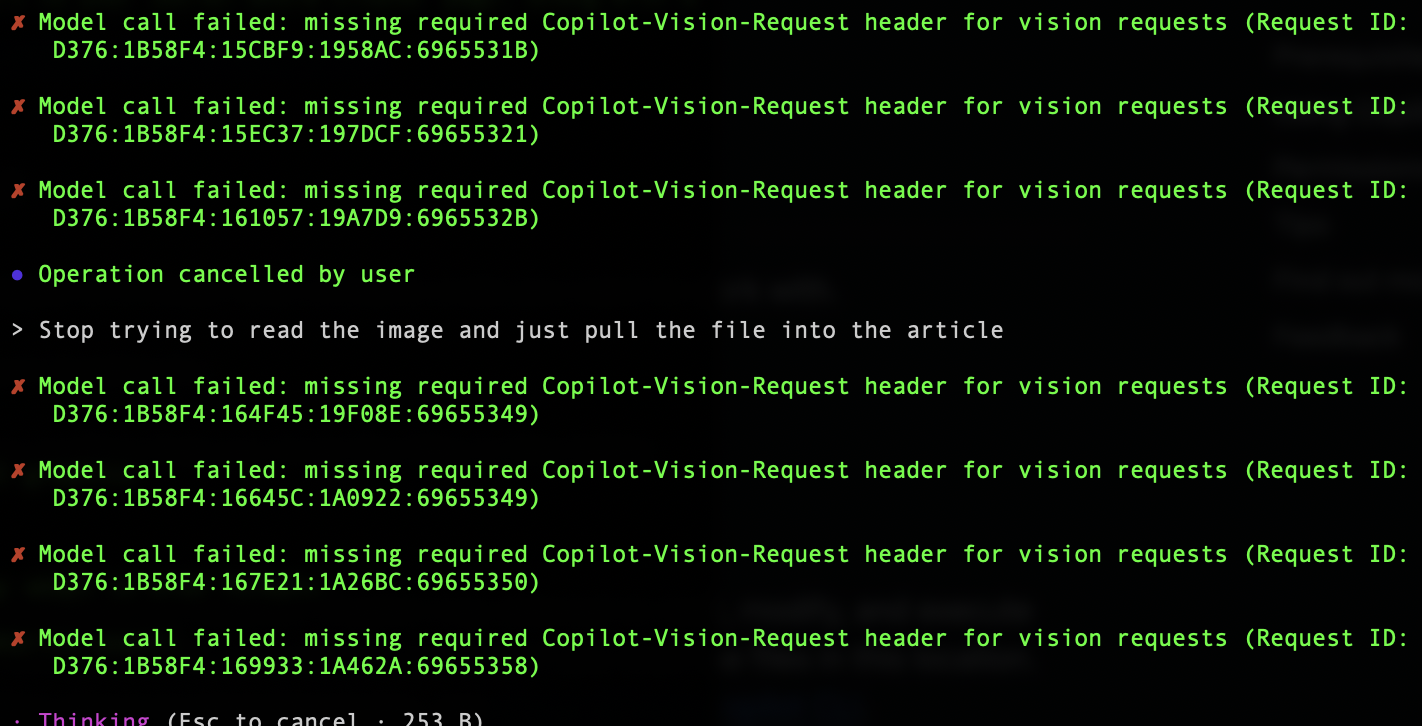
I was trying to add a screenshot to the chat for reference—just a simple drag-and-drop of a small image I wanted to include in this post. Turns out vision isn't enabled by default (or at least not on my plan), and instead of gracefully handling it, Copilot got stuck in an error loop.
The irony? The screenshot I was trying to share was for this blog post. Now I have a second screenshot showing how I broke things, which I had to ask Copilot to copy to the blog directory without reading it to avoid crashing again.
Learning #1: Don't drag images into Copilot CLI chat (yet).
Wait, There's No Plan Mode?
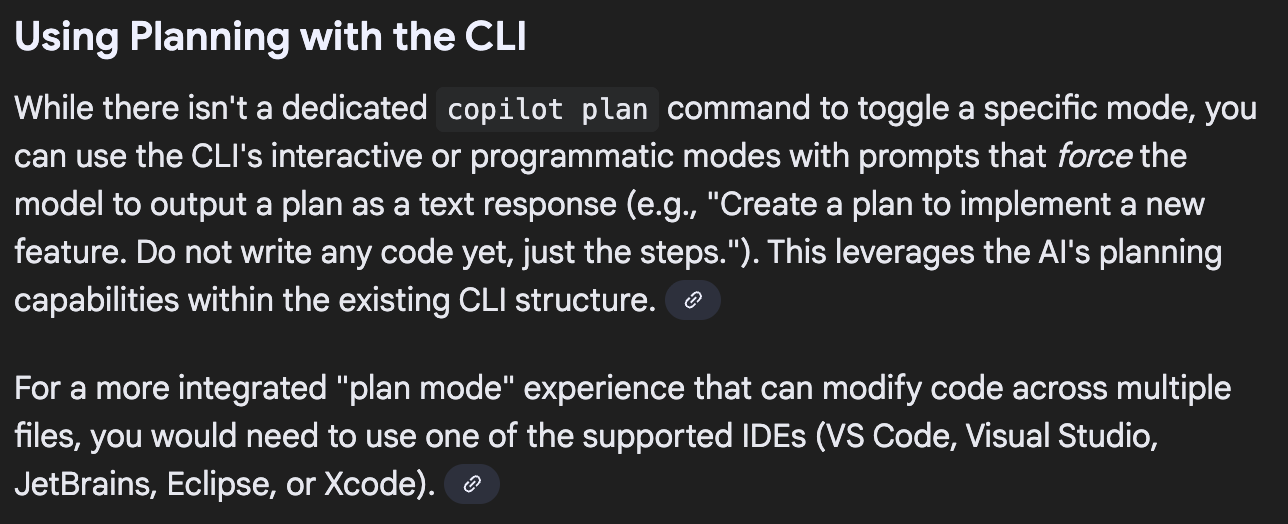
Coming from Claude Code, I'm genuinely shocked that there's no "plan mode" in the CLI. The IDE apparently has something similar, but the CLI? Nada.
This is already making me hyper-focus on what actions Copilot is taking in real-time. Every tool call, every file read, every edit—I'm watching it all happen. Which... might actually be a good thing?
For new developers learning agentic development, this forced visibility could be educational. You're not just seeing the end result; you're watching the thought process unfold. You learn how an AI agent approaches a task, what files it checks, what commands it runs.
But for someone who's used to reviewing a plan before execution? It's a bit nerve-wracking. Trust but verify takes on a whole new meaning when the verification happens in real-time.
Learning #2: No plan mode = hyper-awareness of every action (educational, but intense).
This post is being updated live as I test GitHub Copilot CLI...